MossImage blog
How to Design an AI Menu That Keeps Prices With the Right Dish
A practical menu workflow: the prompt structure, two- and three-column layouts, the right render tier, real benchmark scores, and the failure cases to avoid.
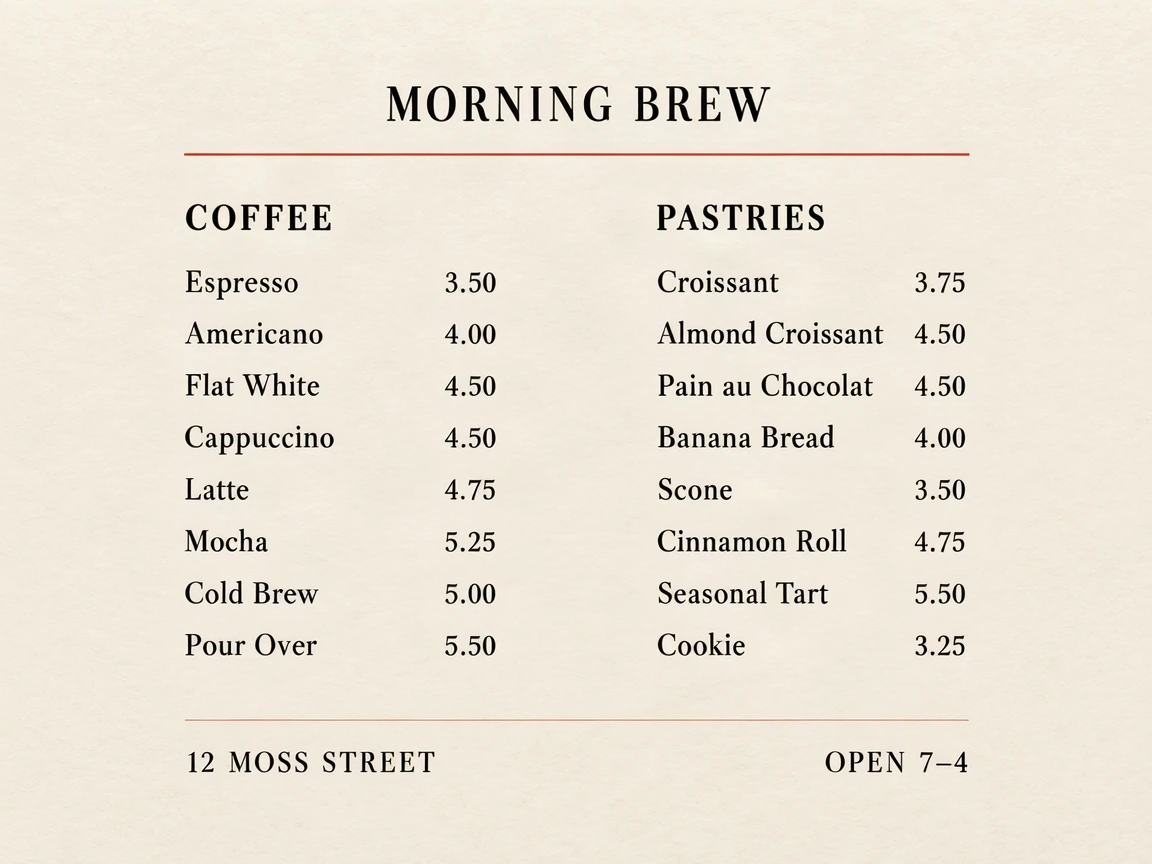
A menu is one of the hardest everyday tests for an image model. It is not one headline; it is 20 or 30 exact strings, each with a price that has to stay attached to the right item. A single shifted price can make the image useless.
We tested this directly. A 16-item cafe menu, a 21-item three-column dinner menu, a 15-item menu with dietary markers, and a 30-item menu at 512 px all kept every price with the correct dish. This article shows the prompt structure behind those results, the render tiers we would use, and the cases where menus still break.
The failure mode
Generic image models tend to fail menus in predictable ways:
- A price drifts onto the next line and looks like it belongs to the next dish.
- One item disappears, and the column closes the gap.
- A section heading is replaced by a decorative word that was never on the menu.
- The model invents a plausible dish to fill space.
The problem is not that the model cannot draw a menu. It can. The problem is that it treats the words as texture unless you make the structure explicit.
The prompt structure
The prompt that worked in our benchmark had five parts:
- A flat surface and a straight-on camera angle.
- A header and a fixed number of columns.
- Each column heading and the exact item lines.
- A footer with the address and hours.
- A negative instruction: “No extra words.”
Here is a shorter version you can adapt:
A straight-on cafe menu on cream paper with black ink.
Header: "MORNING BREW".
Two columns. Left heading "COFFEE", right heading "PASTRIES".
Left: "Espresso 3.50", "Americano 4.00", "Flat White 4.50", "Latte 4.75".
Right: "Croissant 3.75", "Almond Croissant 4.50", "Scone 3.50", "Cookie 3.25".
Footer: "12 MOSS STREET", "OPEN 7–4".
Keep each item and price on the same line. No extra words.
Three details do most of the work:
- One item per line, with the price on that line. Do not write a paragraph of dishes.
- Say “two columns” or “three columns.” The model needs the layout, not just the content.
- Name the columns. “COFFEE” and “PASTRIES” are anchors; without them, the model may invent its own sections.
If you want a more designed menu, add the paper color, ink color and type style. Keep those instructions short. The more decorative language you add, the more room the model has to reinterpret the copy.
A real result
The benchmark cafe menu rendered all 16 items and all 16 prices correctly. The three-column dinner menu rendered 21 items and 21 prices. A menu with V, GF and N markers rendered every marker. The 30-item menu at 512 px still kept all 30 prices, although the type was small.
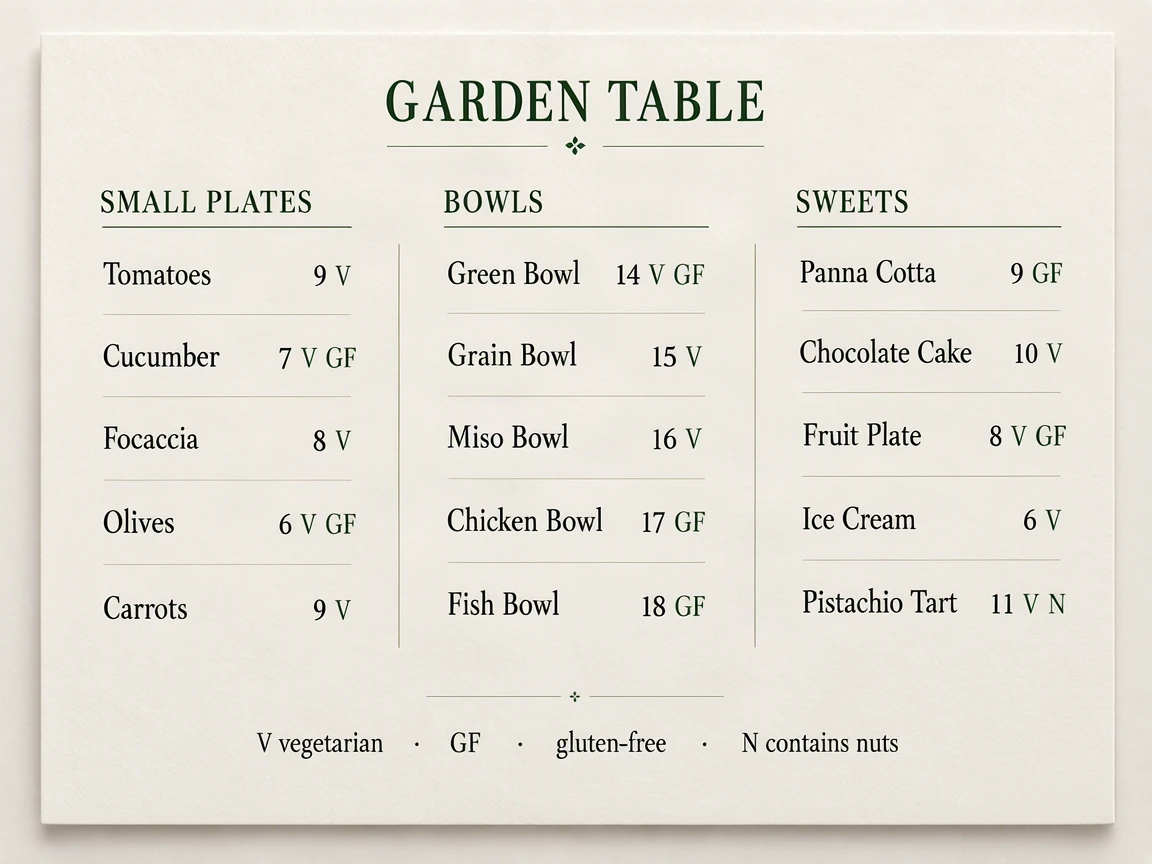
B4 · 15 items with V/GF/N markers · 15/15 prices and markers correct.
The full prompt and raw output for each case are on the benchmark page. The menu-specific guide, with the 16-item prompt and a downloadable PNG, is on the AI menu generator page.
A workflow that catches mistakes early
- Build the source list first. Put one dish and price per line in a notes app. This is the list you will proofread against.
- Decide the column count before you prompt. Two columns work well for 12–16 items; three columns work for 18–24. More columns mean smaller type.
- Quote every line. Do not rely on the model to infer a price from context.
- Render a Draft. Draft is 512 px and costs 1 credit. Check every price and every section heading.
- Render Final for web or HD for print. Final is 3 credits; HD is 7. HD is the safer choice when the menu will be printed or shown on a large display.
- Proofread the final image against the source list. Do not assume a clean Draft guarantees a clean Final.
The cost is predictable. A Draft costs 1 credit (about $0.20 on Lite monthly, $0.17 on Pro monthly). Final costs 3 credits (about $0.60 / $0.50). HD costs 7 credits (about $1.40 / $1.17). Signed-in accounts get two free Drafts a day; paid accounts render watermark-free. See pricing for the full table.
What still fails
Menus are a strong case, but not an unlimited one. These conditions still cause problems:
- Long descriptions. A paragraph of body copy can collapse into overlapping glyphs. Keep each dish description to one short line.
- Tiny type. Thirty items on a 512 px square is possible, but the text is small. Use HD for print.
- Low contrast. Beige ink on cream paper looks elegant and is harder to read. Increase the contrast if the menu will be photographed or printed small.
- Perspective and glare. A flat, straight-on layout works far better than a photo of a menu at an angle.
- Hand-written or decorative type. Large, clean chalk lettering passed in our test; a real photo of handwriting under glare is a different problem.
The honest summary: short menu lines are a good fit; long prose is not. If the menu needs a story about the restaurant, set that paragraph separately and place it in a layout tool.
A checklist before you export
- Every dish on the source list appears once.
- Every price is on the same line as the correct dish.
- Section headings match the source.
- The address and hours are correct.
- Dietary markers have a legend.
- The final image is rendered at the tier you need.
- The image is watermark-free if it is for a client.
If those are true, the menu is ready. If one price is attached to the wrong dish, re-render; do not try to fix it with a crop.
Related
Open the AI menu generator · Run the full benchmark · Try MossImage free